Bedrock Crossplay
Enable seamless cross-play between Minecraft Java and Bedrock Edition players on your server network with zero backend plugins required. Gate provides built-in Geyser integration that handles all Bedrock protocol translation automatically.Overview
Gate’s Bedrock support uses a proxy-in-front-of-proxy architecture with built-in Floodgate protocol support: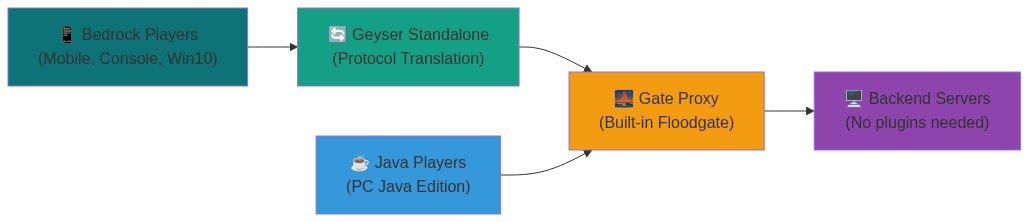
How It Works
- Bedrock Players connect to Geyser on UDP port 19132 (customizable)
- Geyser translates Bedrock protocol to Java Edition and forwards to Gate
- Gate handles Floodgate authentication internally and routes connections
- Backend servers see all players as normal Java Edition connections
Key Benefits
- No backend plugins - Gate handles all Bedrock logic internally
- Zero configuration - Managed mode handles everything automatically
- Cross-platform - Supports all Bedrock platforms (mobile, console, Windows)
- Secure - Uses AES-128 encryption for player authentication
Quick Start
Get Bedrock support running in 30 seconds with managed mode:1
Enable Bedrock in config
Add the following to your
config.yml:2
Start Gate
Launch Gate with your configuration:Gate automatically:
- Generates encryption keys
- Downloads Geyser
- Creates optimized configs
- Manages the Geyser process
3
Connect
Players can now connect:
- Java Players:
localhost:25565 - Bedrock Players:
localhost:19132
The
managed: true shorthand enables both Bedrock support and managed mode in one line!Configuration
Basic Configuration
For most users, managed mode provides the perfect balance of simplicity and control:Configuration Options
Managed Mode Options
Network Configuration
Advanced Configuration
Custom Geyser Settings
Override any Geyser configuration option usingconfigOverrides:
Username Formatting
Prevent conflicts between Java and Bedrock usernames:Manual Setup (Advanced)
For users who want to manage their own Geyser installation:1
Generate Floodgate key
Create a 16-byte AES-128 key:
2
Download Geyser Standalone
3
Configure Gate
4
Configure Geyser
Edit Geyser’s
config.yml:5
Start in order
Troubleshooting
Bedrock Players Can't Connect
Bedrock Players Can't Connect
Solutions:
-
Check UDP port - Ensure port 19132 is open for UDP traffic:
-
Verify managed mode status - Check Gate logs for Geyser startup:
-
Check firewall - Allow UDP 19132 and TCP 25567:
Authentication Errors
Authentication Errors
Solutions:
-
Verify key generation - Check if Floodgate key was created:
-
Check key permissions:
-
Regenerate if corrupted:
Performance Issues
Performance Issues
Solutions:
-
Tune Geyser settings:
-
Increase memory for Geyser:
Supported Features
Fully Supported
- Cross-platform play - All Bedrock devices can join Java servers
- Authentication - Secure Xbox Live authentication via Floodgate
- Chat & commands - Full compatibility between editions
- World interaction - Building, mining, crafting work normally
- Device detection - Server can identify player platforms
- Inventory sync - Items transfer correctly between editions
Partial Support
- Custom items - Java-specific items may render differently
- Resource packs - Bedrock packs need special conversion
- Some plugins - Java-specific plugins may not work with Bedrock players
Not Supported
- Bedrock-exclusive features - Education Edition content, some UI elements
- Java mods - Forge/Fabric mods don’t work with Bedrock clients
- Complex redstone - Some advanced redstone may behave differently
- Lite Mode - Gate Lite isn’t compatible with Bedrock Edition (coming soon)
For more information about Geyser and Floodgate, visit the GeyserMC Wiki.